Budget caps: Faster ordering without losing spend control
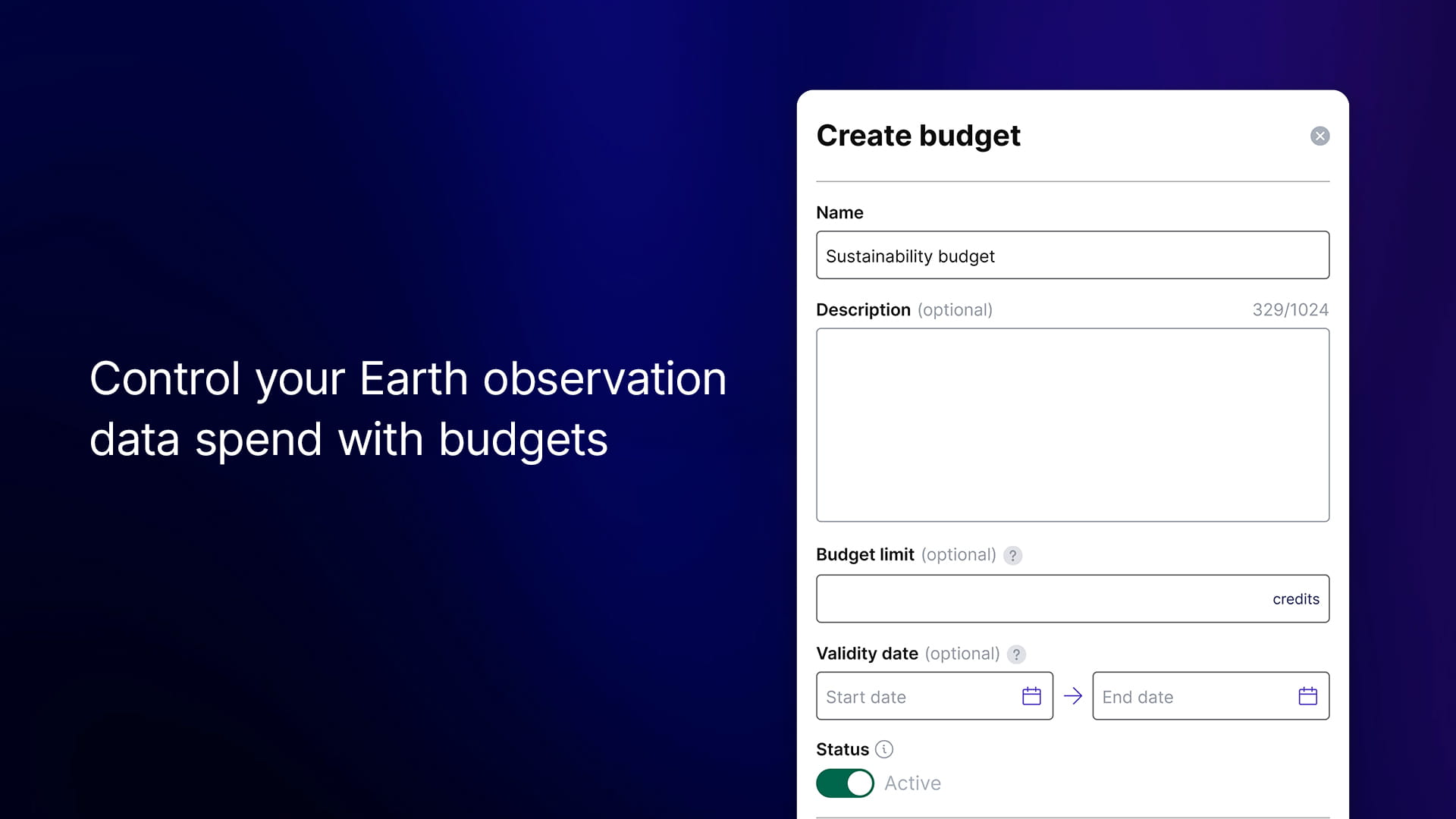
When one team buys imagery for one project, tracking spend is straightforward. Someone approves the purchase, someone files the invoice, and the two are easy to match. As Earth observation data becomes a key part of daily operations, that gets harder.
Global organizations working with geospatial data have multiple teams ordering for different projects, regions, or customers. Some orders are manual, and some workflows run automatically. Keeping track of who’s spending what becomes hard. Harder still is the question of who is allowed to spend what, and when.
Tying every order to the cost center paying for it
Our largest customers were often doing this work manually. An allocation agreed with the Finance department, a team ordering against it, and a reconciliation at the end of every month. In practice, this meant users added purchase order numbers as tags when placing orders, administrators exported reports, and finance reconciled spending at month’s end. It works at first, but it doesn’t scale, and every user has to enter the right information every time, or else the entire thing becomes a mess: a misattributed spend surfaces weeks later, and allocations are sometimes overspent. And the extra approval steps slow down the teams waiting for data.
That's where budget management comes in. An admin or an owner creates a budget in account management, gives it a name and a status (active or inactive), and links it to the purchase order ID, so platform spend can be matched to the same project or PO number that finance already tracks. Any order or processing job can now be assigned to a specific budget, so every charge against it is recorded in one place.
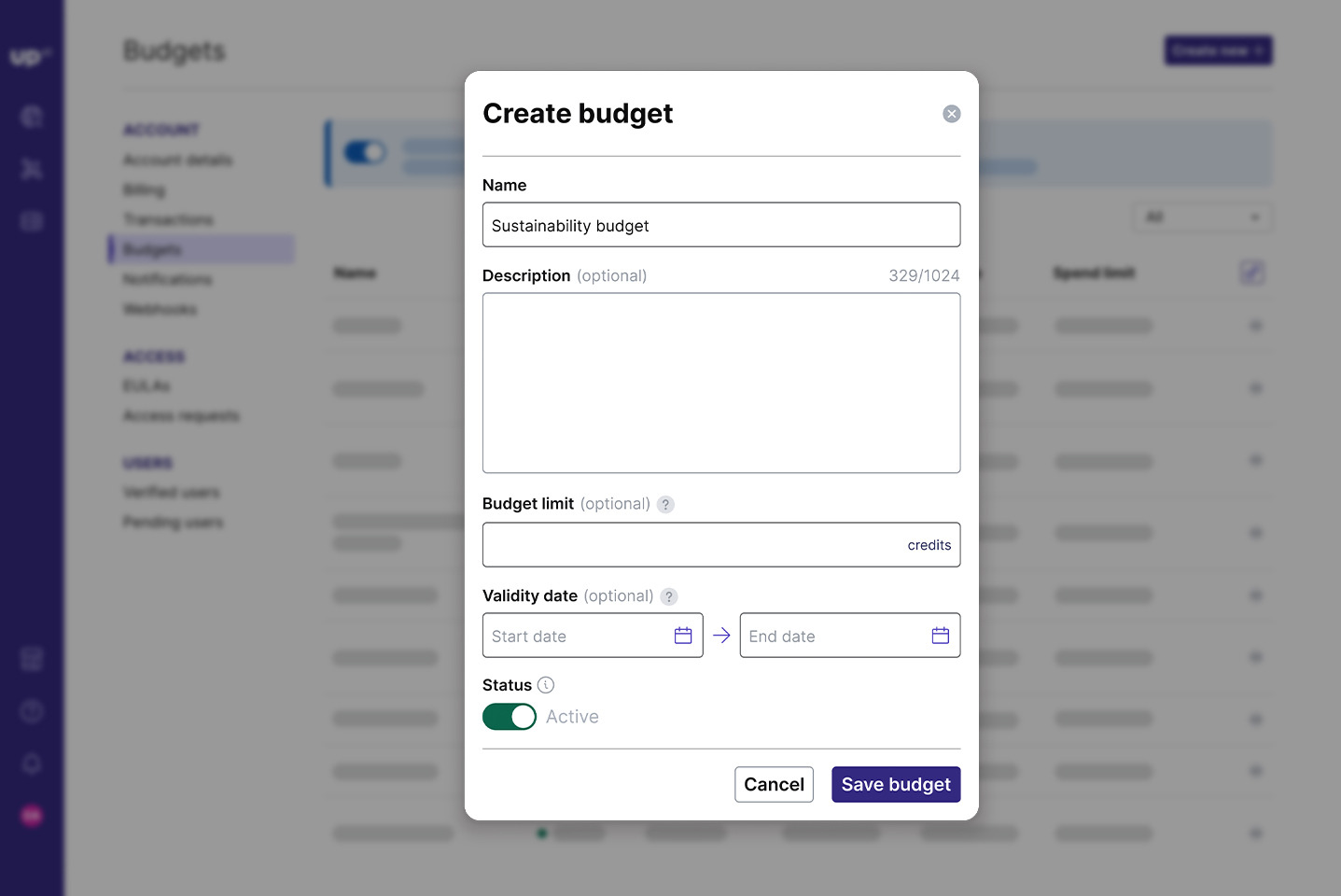
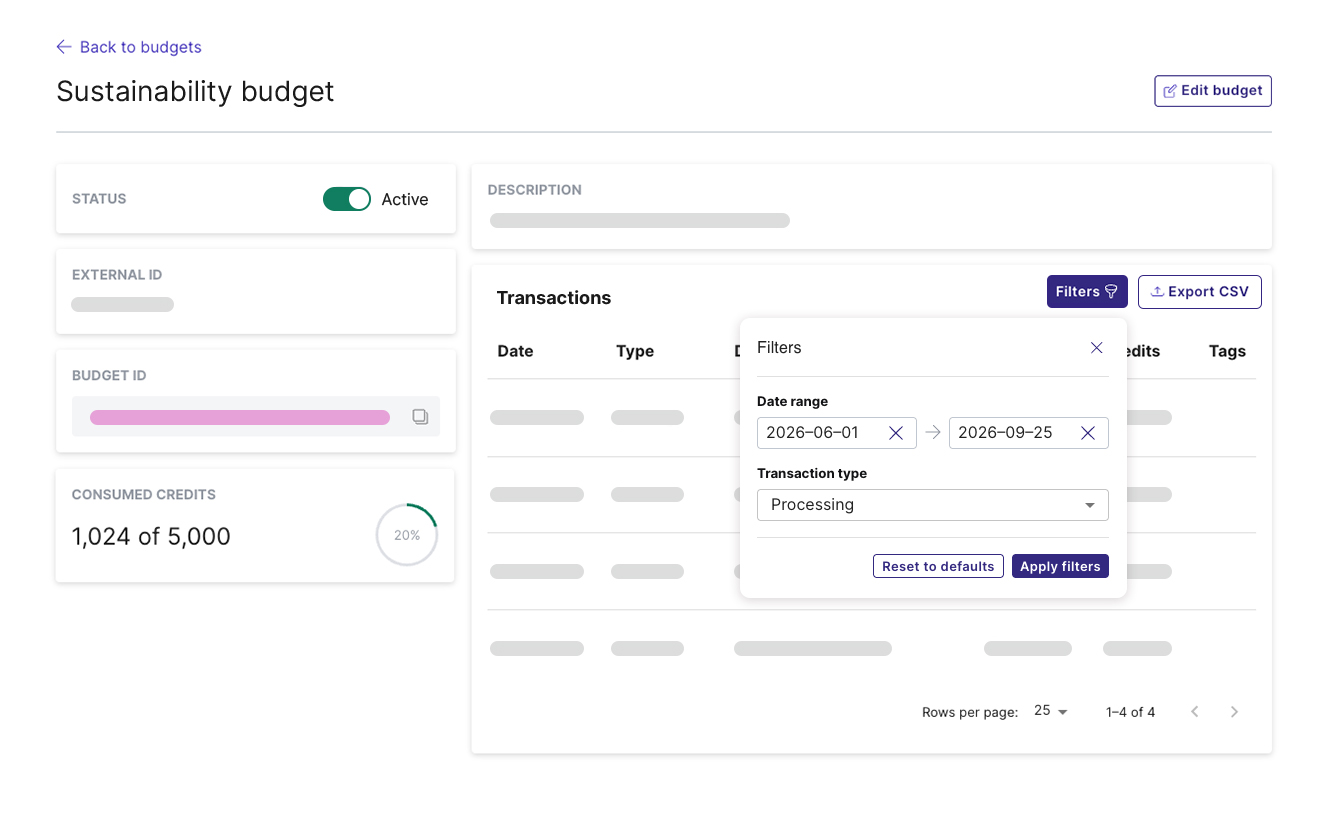
Budget usage can be filtered by date range or transaction type, and exported as a CSV file. Turning on Enforce budget selection requires every user in the account to pick a budget at checkout, so nothing gets ordered without being attributed. Creating and editing budgets is restricted by role, which keeps the structure in the hands of the people accountable for it. And for finance teams, end-of-month reconciliation becomes a lot faster.
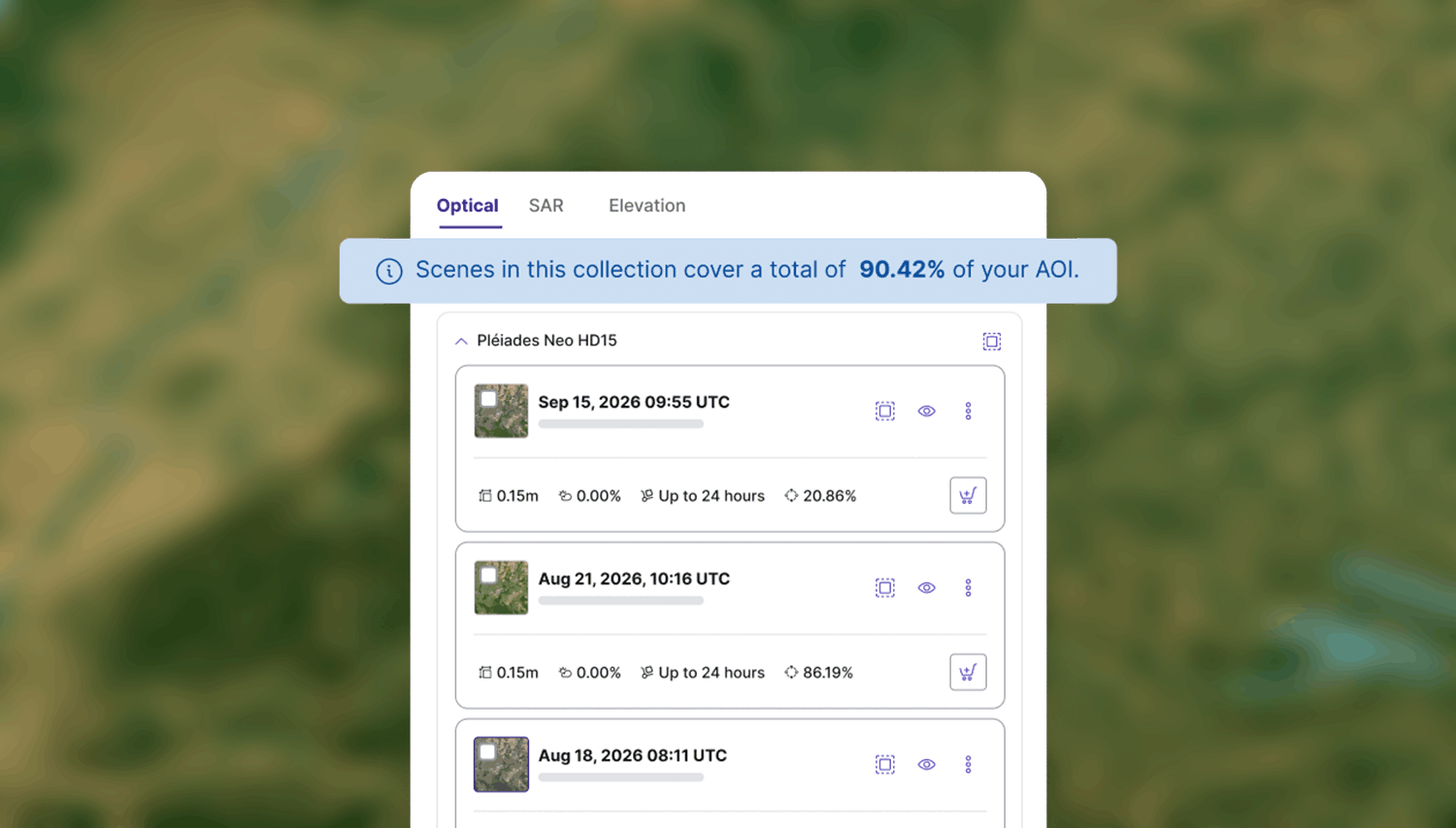
The next step is turning those agreed allocations into limits that apply automatically at the moment an order is placed, whether manually or through an automated pipeline.
Approve once, instead of order by order
A spend limit removes the need to check each order. It's a hard ceiling set by an account admin, and no order or processing job placed against that budget can exceed it. Everyone working against the budget knows exactly how much is available, and platform spend matches the purchase order or cost center it was approved under. For an organization coordinating regional utility corridor monitoring across several teams, or running exploration programs in multiple countries, a centrally approved allocation allows teams to order directly without waiting on approvals.
A validity period is a date range outside which a budget automatically becomes unusable. Fixed-term budgets close when the project closes. Quarterly allocations expire at the end of the quarter, instead of carrying over unnoticed.
Spend controls for a more scalable infrastructure
As an account admin or owner, you can now distribute pre-approved budgets across departments, teams, and international sites. Each budget has its own limit and dates, every order is attributed at checkout, and spending is mapped to the correct PO number. For everyone else, it means ordering what you need without waiting for approval. This means that geospatial spend can scale without losing oversight, whatever the organizational setup.
Budget management is available on our Enterprise plan. You can read how budgets work in our budget management documentation, or talk to our enterprise team about how to get started.
Subscribe to our newsletter
Stay up to date and learn about our fast-growing new features